How to transfer local data into S3 Buckets ?#
Data can easily be transferred from your local machine into S3 buckets.
For more information on what S3 buckets are and how to set up them up, see our S3 Buckets page.
This page will guide you through how to transfer data into S3 buckets with the following sections:
- File transfer using the Bryn interface
- S3 configuration
- File transfer using a file transfer client
- File transfer using the command line
File transfer using the Bryn interface#
From the Bryn S3 interface, select the bucket you wish to upload data to.
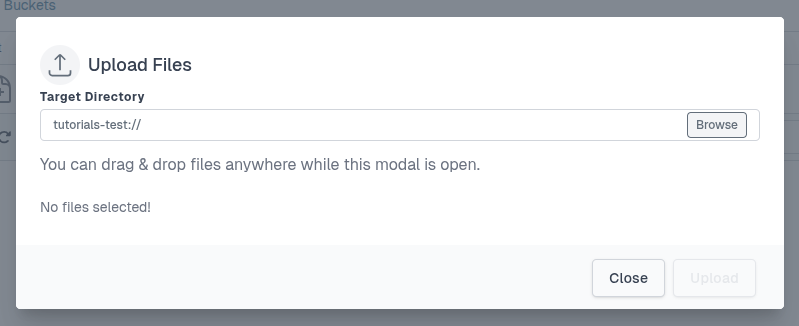
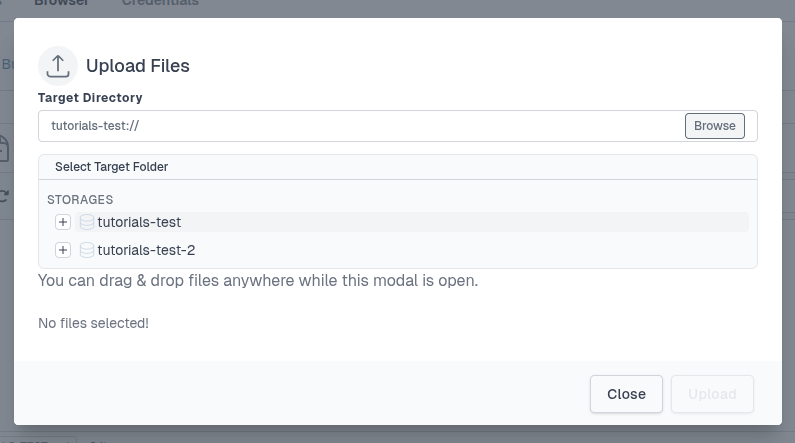
To upload a file, either select the File button on the top or select the Upload icon underneath. Here you can type or Browse which Bucket to upload to. You can drag and drop files.
Tip
For larger files, you can transfer files programmatically as seen in the following sections below.
S3 configuration#
To programmatically transferring data to and from buckets, you will need some configuration to be able to access your CLIMB S3 buckets. For this you require your S3 credentials. Credentials include your S3 username, Access Key ID and Secret Access Key which you can find under the Credentials tab.
See our S3 Buckets page for more information on where to find your S3 credentials.
File transfer using a file transfer client#
You can use file transfer client software to transfer files to the S3 buckets. This will require your S3 credentials.
To demonstrate how to transfer files using a file transfer client, we will use Cyberduck. This is available for Windows and MacOSX. You can Download and install the software and then open it. You will be presented with a window like this:
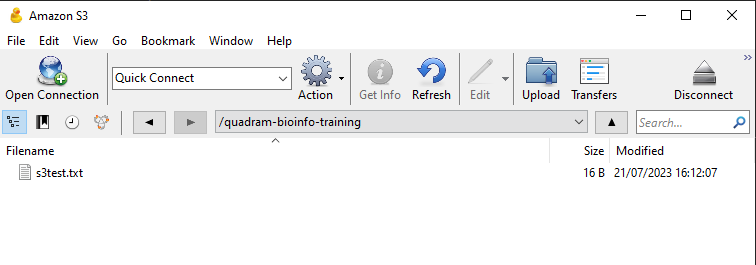
Click on the Open Connection button, and then select Amazon S3 from the dropdown menu. You will then be presented with a window like this:
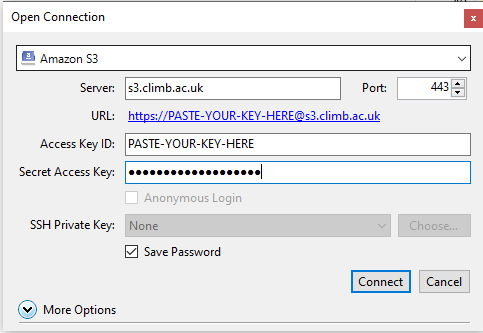
Enter the following details:
- Server: s3.climb.ac.uk
- Access Key: Your access key from Bryn
- Secret Access Key: Your secret access key from Bryn
Then click Connect. You will be presented with a window of all your teams buckets, mirroring what is visible in Bryn. Double click on the bucket you want to upload to, and you will see the contents of the bucket.
You can upload to the bucket using the upload button in the top left of the window. You can also drag and drop files and folders into the window to upload them.
You can right click on files and folders to download them.
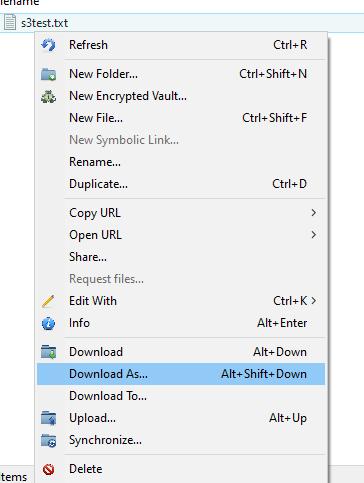
For more information about Cyberduck, see here.
File transfer using the command line#
You can also use the command line to transfer files from your local machine to S3 buckets. This will require your S3 credentials.
To demonstrate how to transfer files using the command line, we will use s3cmd. You can install the software using pip:
pip install s3cmd -U
You will need to configure s3cmd with your S3 credentials:
s3cmd --configure
It will then ask a series of questions. The answers are:
- Access Key: Your access key from Bryn
- Secret Key: Your secret access key from Bryn
- S3 Endpoint: s3.climb.ac.uk
- DNS-style bucket+hostname:port template for accessing a bucket: %(bucket)s.s3.climb.ac.uk
For all other options just use the default values, listed in the square brackets [ ]. You can just press enter to accept the default values.
If we use s3cmd to list the buckets, you will be presented with a list of all your teams buckets, mirroring what is visible in Bryn:
s3cmd ls
If you do not currently have any buckets in your team, nothing will appear.
Tip
S3 Buckets on CLIMB are named by default to include your team (team-name) and the name you assign to each bucket (bucket-name). This naming format looks as follows: s3://[team-name]-[bucket-name]. To access and interact with buckets through the command line you will need this naming format as seen in the examples below.
Basic s3cmd commands:#
Due to the way S3 is configured, users can only create buckets from within bryn. See our S3 Buckets page page for more information on how to create buckets.
The most common s3cmd commands can be seen below:
To remove bucket use the rb command:
s3cmd rb s3://[team-name]-[bucket-name]
Warning
Be careful when deleting buckets as when using s3cmd, there are no confirmation steps for which bucket you are deleting.
To list objects or buckets use the ls command:
s3cmd ls s3://[team-name]-[bucket-name]
To list all files even within directories use the ls command with the --recursive flag:
s3cmd ls s3://tutorials-data/ --recursive
To list all object in all buckets use the la command:
s3cmd la
To add a file into a bucket use the put command:
s3cmd put File s3://[team-name]-[bucket-name]
To add whole directories into a bucket use the put command with the --recursive flag:
s3cmd put Directory/ s3://[team-name]-[bucket-name] --recursive
To retrieve a file from a bucket use the get command:
s3cmd get s3://[team-name]-[bucket-name]/File Path/for/Local_File
To delete a file from a bucket use the del or rm command:
s3cmd del s3://[team-name]-[bucket-name]/File
s3cmd rm s3://[team-name]-[bucket-name]/File
To delete whole whole directories within a bucket use the del or rm command with the --recursive flag:
s3cmd del s3://[team-name]-[bucket-name]/Directory/ --recursive
s3cmd rm s3://[team-name]-[bucket-name]/Directory/ --recursive
What is next ?#
Once you understand local data transfer into S3 buckets you can look at our Data access within JupyterLab environments page.