How to access S3 Buckets within JupyterLab environments ?#
Data from your S3 buckets can easily be accessed from within your JupyterLab environments.
For more information on what S3 buckets are and how to set up them up, see our S3 Buckets page.
This page will guide you through how to transfer and access data between S3 buckets and your JupyterLab environment with the following sections:
How to start ?#
To access your S3 buckets within JupyterLab environments, you can use the command line tool s3cmd.
You'll find an up-to-date, stable version pre-installed in your JupyterLab environment and, more importantly, pre-configured. You can access this tool via the terminal.
For more information on how to create a JupyterLab environment and use the terminal see our JupyterLab environments and Terminal pages.
Once you have your terminal open you can access s3cmd as follows:
s3cmd
If you've already started using S3 buckets via Bryn, your S3 credentials will already have been injected into the JupyterLab environment as environment variables. Your S3 bucket storage is pre-configured for you through the $AWS_SECRET_ACCESS_KEY and $AWS_ACCESS_KEY_ID variables and the configuration file ~/.s3cfg.
We've also pre-configured aws cli and s3cmd to use the CLIMB S3 endpoints by default. As a result, you should be able to access buckets with no additional setup.
Warning
Do not change any of these configurations unless you are very confident with S3 and can use it without support.
You can either copy your data/files into your team-share or directly access the buckets from within Nextflow pipelines.
How to copy files into your team-share#
The following commands can be used to identify and copy data from your S3 buckets into your JupyterLab environment from the terminal:
Tip
Remember to check if you are copying large files to your team-share and not your home directory !
To list objects or buckets use the ls command:
s3cmd ls s3://[team-name]-[bucket-name]
To list all files even within directories use the ls command with the --recursive flag:
s3cmd ls s3://tutorials-data/ --recursive
To retrieve a file from a bucket use the get command:
s3cmd get s3://[team-name]-[bucket-name]/File Path/for/Local_File
That's it, once the files are copied they are ready to be used in analysis !
Other common s3cmd commands can be seen on our local data transfer page.
Using S3 buckets with Nextflow#
You can access your S3 buckets directly through Nextflow. Files within your S3 buckets can be accessed just like any other files in your home directory or Team Share Storage. Nextflow is pre-configured for the CLIMB S3 endpoints so all you need to do is use the correct paths like so:
s3://[team-name]-[bucket-name]/file
As an example, we will run the nf-core pipeline nf-core/demo with associated test data files already uploaded to an S3 bucket. The same process can be used for your own data files and S3 buckets.
To start we will need a file to define our samples and paths. Create a sample sheet called “samplesheet.csv”:
touch samplesheet.csv
The sample sheet should include the following columns:
| Column | Description |
|---|---|
| sample | Unique sample identifier |
| fastq_1 | Path to gzipped first-read FastQ file |
| fastq_2 | Path to gzipped second-read FastQ file (leave empty for single-end) |
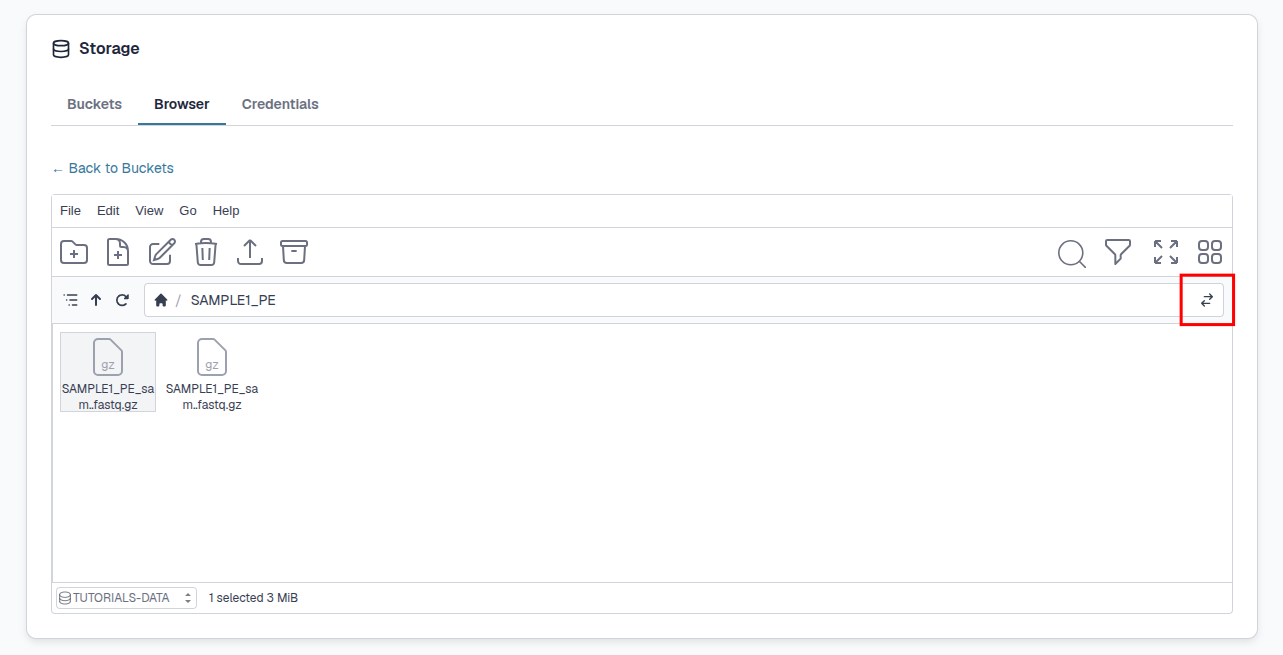
To identify the path for the files within our S3 bucket we can use the bryn S3 buckets section of the dashboard and select the "Toggle path" button on the right:
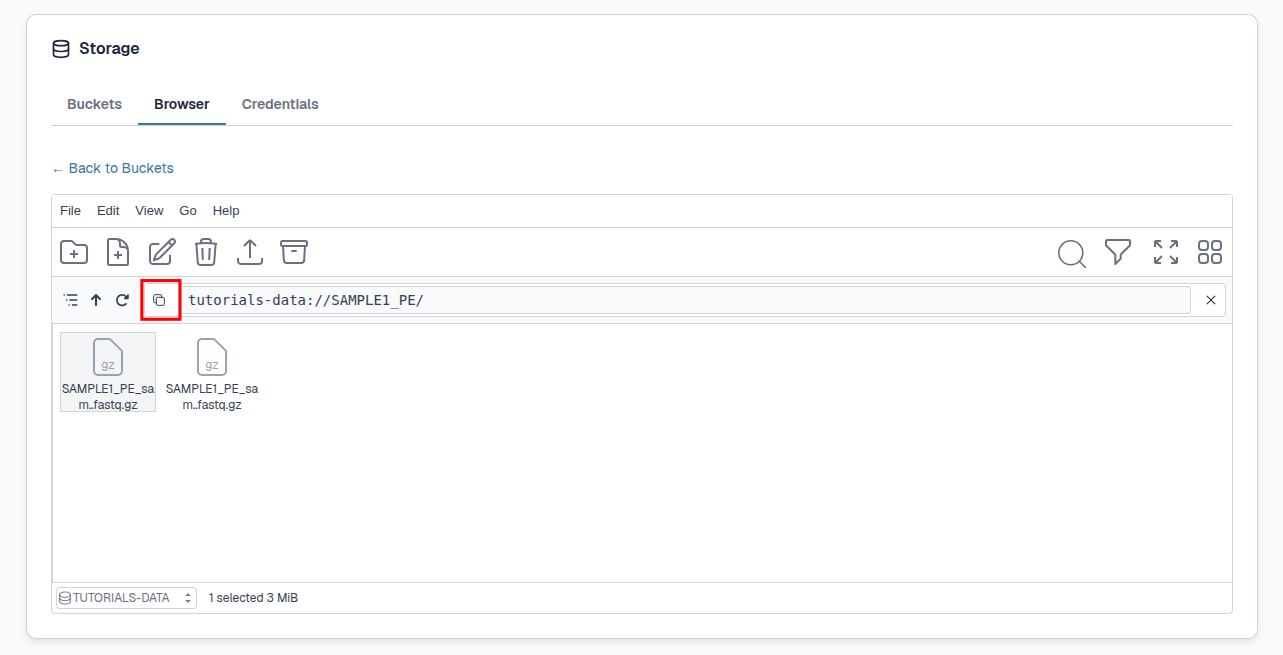
You can then copy the path with the "Copy Path" button on the left:
Alternatively when interacting with a lot of files, we can use the ls command in the terminal:
s3cmd ls s3://tutorials-data/
This will provide the full paths to files however individual files within directories will not be shown:
                    DIR  s3://tutorials-data/SAMPLE1_PE/
                    DIR  s3://tutorials-data/SAMPLE2_PE/
                    DIR  s3://tutorials-data/SAMPLE3_SE/
ls command with the --recursive flag:
s3cmd ls s3://tutorials-data/ --recursive
This will provide the full paths to all files:
2026-07-14 09:48     3M  s3://tutorials-data/SAMPLE1_PE/SAMPLE1_PE_sample1_R1.fastq.gz
2026-07-14 09:48     3M  s3://tutorials-data/SAMPLE1_PE/SAMPLE1_PE_sample1_R2.fastq.gz
2026-07-14 09:48     2M  s3://tutorials-data/SAMPLE2_PE/SAMPLE2_PE_sample2_R1.fastq.gz
2026-07-14 09:48     2M  s3://tutorials-data/SAMPLE2_PE/SAMPLE2_PE_sample2_R2.fastq.gz
2026-07-14 09:48     3M  s3://tutorials-data/SAMPLE3_SE/SAMPLE3_SE_sample1_R1.fastq.gz
2026-07-14 09:48     2M  s3://tutorials-data/SAMPLE3_SE/SAMPLE3_SE_sample2_R1.fastq.gz
So within the team tutorials and a bucket named data, we want to add our files SAMPLE1_PE_sample1_R1.fastq.gz and SAMPLE1_PE_sample1_R2.fastq.gz to the sample sheet.
The full path required for the forward and reverse reads are as follows:
s3://tutorials-data/SAMPLE1_PE/SAMPLE1_PE_sample1_R1.fastq.gz
s3://tutorials-data/SAMPLE1_PE/SAMPLE1_PE_sample1_R2.fastq.gz
When you add the relevant paths to your S3 bucket files to the sample sheet it should look something like this:
sample,fastq_1,fastq_2
SAMPLE1,s3://tutorials/data/SAMPLE1_PE/SAMPLE1_PE_sample1_R1.fastq.gz,s3://tutorials/data/SAMPLE1_PE/SAMPLE1_PE_sample1_R2.fastq.gz
SAMPLE2,s3://tutorials/data/SAMPLE2_PE/SAMPLE2_PE_sample2_R1.fastq.gz,s3://tutorials/data/SAMPLE2_PE/SAMPLE2_PE_sample2_R2.fastq.gz
SAMPLE3,s3://tutorials-data/SAMPLE3_SE/SAMPLE3_SE_sample1_R1.fastq.gz,s3://tutorials-data/SAMPLE3_SE/SAMPLE3_SE_sample2_R1.fastq.gz
Now you can run the pipeline using the sample sheet with the --input flag:
nextflow run nf-core/demo -profile docker --input samplesheet.csv --outdir results-2
Most nf-core pipelines use a sample sheet to define the paths for input files, so the same approach can be used as above.
What is next ?#
Once you know to copy data to and from JupyterLab environments, you can also try using the jupyter notebooks and Nextflow.